
Status button
The Status Action adds an OpenClaw Status button that opens a dialog with the session's context, your rate limits and its sub-agents, fetched live. It is a separate function that reuses the Pipe's connection and device, so there is no second pairing; install the Pipe first.
Applies to: Action, Pipe
Valves: GATEWAY_URL, GATEWAY_TOKEN, DEVICE_IDENTITY, STATE_DIR, AGENT_ID, CONTROL_UI_URL, and the Pipe's COMPOSER_STATUS_BUTTON
What you get
A button on the message toolbar:

and, in OpenClaw chats, a Claw button (the Status Action) in the composer, next to the integrations button:
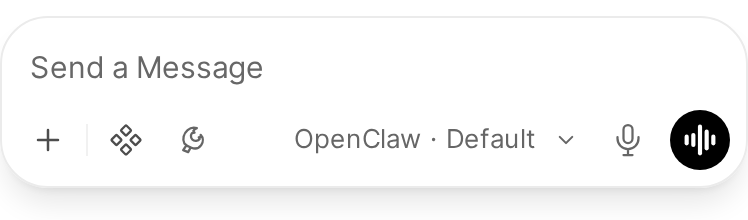
Both open the same dialog. What it shows and how to use it: Status.
Install with the installer
install.py manages openclaw_pipe.py. The Status Action has its own installer. Install the Pipe first, since it is the source of truth for the shared valves. In the repo checkout:
uv run install_action.py install   # create/update the Action, mirror valves from the Pipe, smoke test
uv run install_action.py status    # inspect without changing anything
uv run install_action.py repair    # same as install
It reads only OWUI_URL, OWUI_EMAIL and OWUI_PASSWORD (or --owui-url, --owui-email, --owui-password), the same login install.py uses. The five shared valves, GATEWAY_URL, GATEWAY_TOKEN, DEVICE_IDENTITY, STATE_DIR and AGENT_ID, are copied verbatim from the Pipe's valves, so the Action reuses the Pipe's already-approved device identity and never triggers a second pairing. It fails fast if the Pipe isn't installed yet (no Pipe valves, or no GATEWAY_TOKEN in them).
What install does:
- Log in to Open WebUI.
- In a clone, rebuild
openclaw_status_action.pyfromsrc/. - Create the Action function
openclaw_status_action, or back it up tobackups/and update it in place. - Make sure it is active and global, so the button appears on every model's messages.
- Copy the five shared valves from the Pipe.
- Smoke test: trigger the Action once through Open WebUI. A test chat has no real session behind it, so a non-
okstatus from the Action still counts as a pass: the point is that it ran.
status prints function_exists, is_active, is_global and valves_match_pipe, and exits 0 only when all four are true.
Two differences from install.py: it must be run from a clone (it imports from install.py, so the uv run <raw-github-url> form doesn't work), and it has no healthcheck subcommand.
The valves are copied when you run it, not kept in sync. After you change the Pipe's connection valves, run uv run install_action.py install again; status shows "valves_match_pipe": false until you do.
Install by hand
Repeat the manual install steps, creating an Action function (not a Pipe):
- Open Admin Panel → Functions → + → Create a function.
- Set the ID to
openclaw_status_action(the type is detected as an Action). - Paste the contents of
openclaw_status_action.py. - Save and enable it, then turn on Global so the button appears on every model's messages.
- Set its five connection valves,
GATEWAY_URL,GATEWAY_TOKEN,DEVICE_IDENTITY,STATE_DIR,AGENT_ID, to exactly the same values as the Pipe's. Its sixth,CONTROL_UI_URL, is its own and optional.
Do not skip DEVICE_IDENTITY here. Without it, a fallback connection from the Action registers as a new device and the Gateway raises a second pairing request. If the Pipe's own DEVICE_IDENTITY is empty, leave this one empty too: a matching STATE_DIR is what lets the Action find the Pipe's identity on disk. uv run install_action.py install mirrors all five for you.
The Action needs the same Python packages as the Pipe, websockets and cryptography; see Python packages inside Open WebUI.
Rate limits from a Claude CLI login
Rate limits come from the Gateway's usage.status. On a Gateway whose only Anthropic credential is a Claude CLI login, recent OpenClaw versions (2026.9.1 and later) report no Anthropic windows there. The Action then falls back to the optional gateway-plugins/claude-cli-usage Gateway plugin, which serves the weekly window (and the 5h window on plans that have one) read-only from the Claude CLI login. It never refreshes, writes or copies that login's token.
The plugin runs inside the Gateway, so it goes on the Gateway host. Its folder holds an OpenClaw plugin manifest (openclaw.plugin.json, id claude-cli-usage) that starts with the Gateway, and adds the Gateway method claudeCliUsage.status. It finds the login in CLAUDE_CONFIG_DIR, or ~/.claude when that is unset.
Without the plugin the rate-limit section shows a note instead, and the Open WebUI backend log has a claudeCliUsage.status unavailable line. With another Anthropic credential on the Gateway you don't need it.
The composer Status button
The Pipe adds the Claw button to the composer of OpenClaw chats, right after the OpenClaw Thinking chip (or at the end of the composer's chips when that chip is off). It opens the same dialog through this Action, so the Action must be installed.
This is an experiment. Open WebUI has no extension point for the composer, so the button is injected into the page by JavaScript: if a future Open WebUI changes the composer and the anchor is not found, the button simply does not appear. It appears as soon as a tab opens an OpenClaw chat.
Turn it off with the Pipe's COMPOSER_STATUS_BUTTON valve (on by default). An already open tab keeps it until reload.
Uninstalling
Delete openclaw_status_action in Admin Panel → Functions. See update and uninstall.